
How to survive your first days at Freenow by Lyft
Welcome to Freenow by Lyft!
This guide will help you set up your computer, access your accounts and understand how we do things here. Follow these simple steps and you'll be ready to go in no time!
The IT team
Please watch this video first
 Okta
Okta
Okta is your one-stop shop for all your workspaces and logins. Think of it as your digital key to Freenow. Freenow is moving to Lyft's systems in stages. Apps that have already moved, such as Jira and Confluence, use Lyft Okta. Apps that have not moved yet still use the Freenow Okta. The two are separate accounts with separate passwords. The App Migration to Lyft Okta page lists which apps are on which Okta.
- Wait for the "Welcome to Okta" email. Then go to https://lyft.okta.com and log in with FirstnameLastname@lyft.com.
- Set a new password. It must be different from your Freenow Okta password. Keep it secret!
- Explore the user-friendly interface and access the tools you need. Use https://okta.free-now.com for apps that are not on Lyft Okta yet.
- If the email has not arrived, open a ticket with the IT Service Desk or ask in #eu-ask-it.
Device and browser requirements
Lyft Okta only accepts devices that meet its minimum requirements.
- A MacBook from 2020 or later, running the latest macOS.
- Google Chrome as your default browser. The error "The resource owner or authorization server denied the request" means you are using another browser.
- Okta Verify with biometrics.
- "User is not assigned to this application" means the app is not on your dashboard yet. Request access through Lyft TMM.
- We recommend two Chrome profiles, one for Freenow and one for Lyft.
Okta Desktop
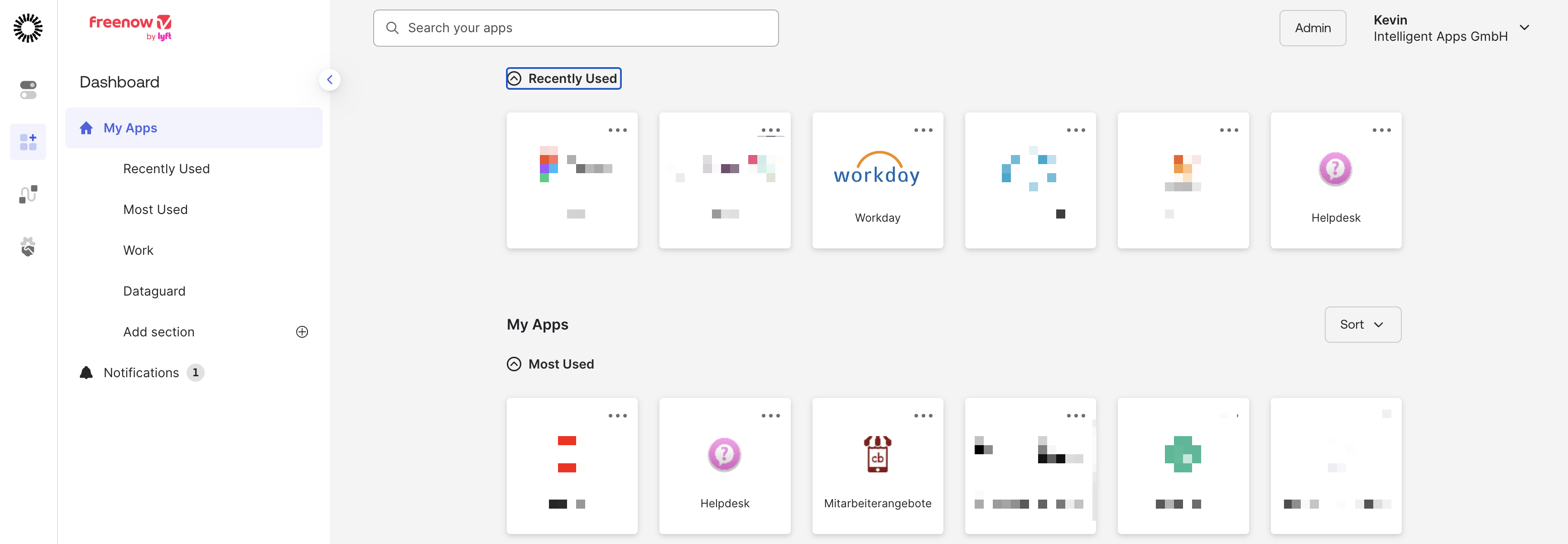
The Okta web interface is simple. If you need access to our internal workspaces or services, click on the service and you will be logged in. The number of workspaces and services differs for each department.
It is a good idea to make https://lyft.okta.com your start page.
Okta Verify: secure and speedy logins
Okta Verify makes logging in more secure by trusting your device. It should already be installed on your device. Lyft policy requires a security key or biometrics as a login factor.
- Open the app "Okta Verify".
- Add an account and enter https://lyft.okta.com as the organisation URL. If you already use Okta Verify for Freenow, keep that account and add the Lyft one as a second account.
- Follow the setup instructions.
See How to set up Okta Verify on your phone. To change your MFA options, read How can I change my Okta MFA options. If you lose the Okta Verify option, contact the IT Service Desk.
 New joiner onboarding training
To ensure a smooth and compliant start, all new joiners must complete our Onboarding Path. This path introduces you to the essential tools, policies and ways of working you'll use from day one.
It consists of 3 simple steps:
- Initial Mandatory Compliance Training: Covers Security, Data Protection, AI and IT expectations. Core knowledge required for all employees.
- Freenow Essentials: Get to know who we are, how we work and what you need to navigate your first weeks.
- Deep Dive: Explore how to get the best out of tools like Gemini, 360 and more!
Access the path here.
 Email
Email
We use Google Gmail for all our email communication. Access it anytime through Okta. Since 1 October 2026 your primary account is your @lyft.com address. Freenow addresses (free-now.com and mytaxi.com) work as aliases, so mail sent to them still reaches you.
To set your email signature:
- Go to https://signature.intapps.it/ and fill in your details.
- Copy the signature from the preview field and paste it into your mail client or the Gmail website.
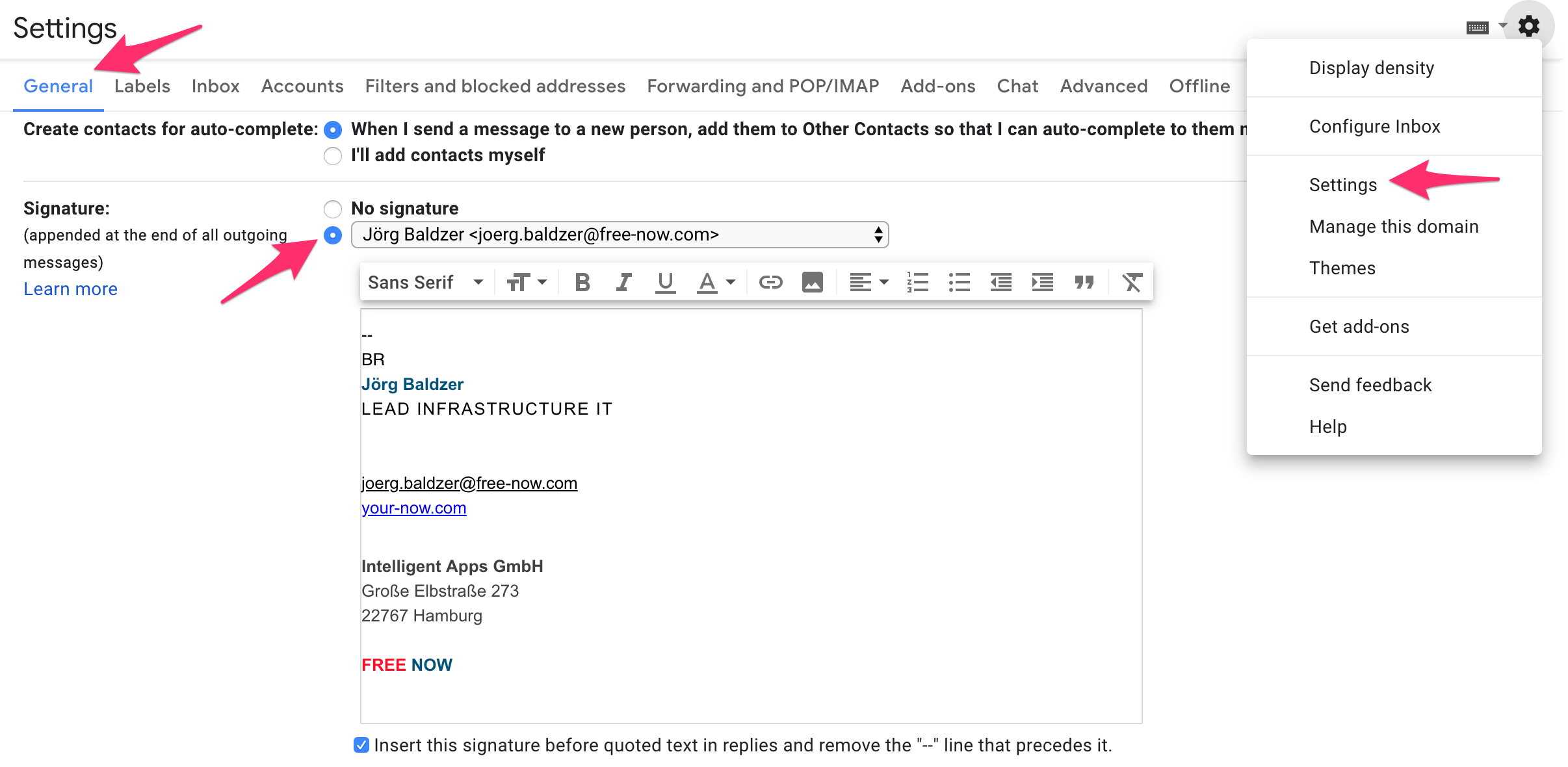
- In Gmail, click the Settings gear icon in the top-right corner, select See all settings, open the General tab and scroll down to the Signature section. Paste your signature into the signature box and click Save Changes. You can also open the Gmail signature settings directly.
 Google Workspace Drive
We use Google Drive as personal and team file storage. Use it for all your data, as we don't provide backups for your MacBook or laptop. The app is also pre-installed on your computer, so you can access Google Drive through your local Finder or Explorer. Existing document links did not change with the move to @lyft.com accounts.
We provide
- a personal drive at https://drive.google.com/drive/home.
- shared drives at https://drive.google.com/drive/shared-drives.
 Slack
Slack
Slack is not only our (internal) instant messaging tool. We use it for short messages among all our employees and with external partners.
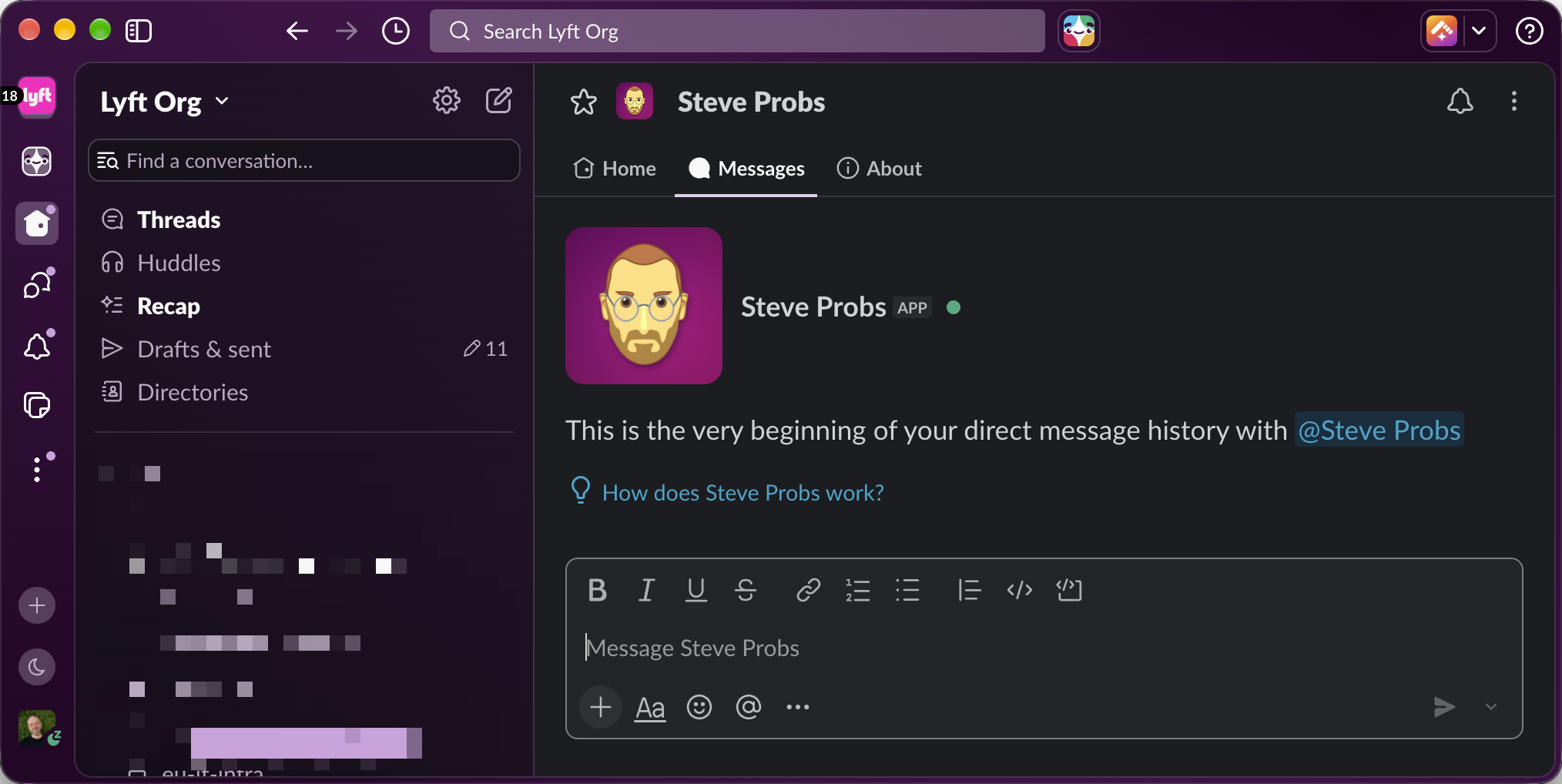
You can use Slack in your web browser, but Slack also has a desktop app (and mobile apps for Android and iOS). The Mac app is pre-installed on your computer. You can find the desktop app on your Mac in the /Applications folder, using the Finder.
- To open Slack, click on the icon on your Okta dashboard.
- To open Slack on your mobile device, open Okta on your phone's default browser (Safari for iOS or Chrome for Android). Click on the Slack icon on the Okta dashboard and then on the green "Open Slack" button on the next page.
Complete your Slack profile
- Upload a profile picture.
- Enter your real name (given name and family name).
- Fill out the other fields as you like.
- Say "Hi" in the #eu-hello-and-goodbye channel.
If you have any questions for the IT team, join the channel #eu-ask-it. IT supports you from 9am to 6pm CET, and every post creates a ticket.
 Jira
Jira
We use Jira as a bug and issue tracking system. This is an important tool for most employees because many tasks are assigned through it.
- Log in to Jira by clicking the Jira icon in Lyft Okta: https://lyft.okta.com.
- Look around and find the project of your team. (If you are a developer, your team definitely has a Jira project.)
 Confluence
Confluence is a powerful web-based corporate wiki. We use it for how-to articles, planning of larger tasks and simple workflow documentation. Everyone should use it to document their work. Everyone loves well-documented environments!
- Access Confluence by clicking on the Confluence icon in Lyft Okta: https://lyft.okta.com (You need to be in an office or use our VPN.)
- Look around and try to find the Knowledge Base space. It contains many frequently asked questions and answers that can help you in your daily work.
VPN
Some internal systems need a VPN when you are not in an office.
- Freenow VPN on macOS: open System Settings, select VPN and choose Freenow EU NORTH (Hamburg) or Freenow EU SOUTH (Barcelona). The backup entries only work if the primary one fails. Your Okta password identifies you. See How to connect to VPN.
- Freenow VPN on Windows: enrol your device in Intune through intapps.it and use the "FREE NOW VPN HAM" client.
- Lyft VPN: Lyft uses Tailscale. The Managed Software Center installs it on MacBooks. Follow the Tailscale VPN setup guide.
The IT Service Desk
Something is not working as expected?
If you have a problem with your computer, your telephone, a printer or some other technical device, please open a ticket with the IT Service Desk and tell us what's wrong. Please give us as much detail about the error as possible.
- Go to the IT Service Desk portal or open Okta and click on Helpdesk.
- Log in with your company account if needed.
- Explore the different request types.
If you have a simple technical question that can be answered in one sentence, feel free to ask it in the Slack channel #eu-ask-it.
I need or need help with...
If you need access to specific systems, software licences or hardware, please contact your supervisor first and ask for permission. Then open the IT Service Desk portal and choose the corresponding request type. For apps that have moved to Lyft Okta, request access through Lyft TMM instead.
Some common items are
- Install a printer: This can be self-served! If you type 'printer' into the Managed Software Center, you'll be able to pick which printer you want to install.
- New to Mac? Get started with our How do I Apple? A Mac Guide for Beginners.
 Workday
Workday is our tool for all HR concerns. You can log in to Workday from Okta by clicking on the Workday button.
- In Workday you can apply for your holiday, get an overview of the organisational structure and give "KUDOS" to other employees, which can then be recognised with a "Kudo Award" at the All Hands.
- As a manager, you get an overview of all your employees showing all current absences such as illness or holidays within your team. You are also responsible for approving or declining the holiday requests of your employees in Workday.
Whistleblowing
Compliance with legal requirements and internal regulations is a top priority for our shareholders. Only when rules and standards are complied with can we avoid causing damage to our company, our staff and our business partners. Misconduct must therefore be identified early. In order to follow up on severe breaches in a fair and appropriate manner, Daimler established the BPO Whistleblower System. The Business Practices Office (BPO) receives reports of rule breaches. To learn more about the Whistleblower System and how to contact the Business Practices Office please use the following link: https://free-now.whistleblowernetwork.net/